
Upload Event Photos to Impulse From an SD Card
Upload event photos to Impulse from an SD card, after editing or when a transfer failed. Use SFTP, the web uploader, the Mac app, Google Drive or Dropbox.
4 min read

In this guide we'll walk through how to upload images directly to Impulse. This may be useful if:
You took pictures on a camera and need to drop all the files from the SD card
You did so editing/post processing and now need to upload the final version to Impulse
You used the Impulse workflow to upload pictures directly from the camera but some transfers failed
There are a few ways you can upload directly to Impulse:
Connect to the SFTP server from your computer
Use the Impulse web interface to upload from your browser
Use the Impulse Photographer App on Mac
Upload to Google Drive or Dropbox and connect the folder to your Impulse event
Connecting to the SFTP from a computer
The same way the various mobile apps can connect to the SFTP server, you can download an SFTP client to uplod directly from your computer.
There are many SFTP client options, but if you're a beginner we recommend using FileZilla
Download FileZilla Client, a free and open source SFTP client: https://filezilla-project.org/download.php?type=client
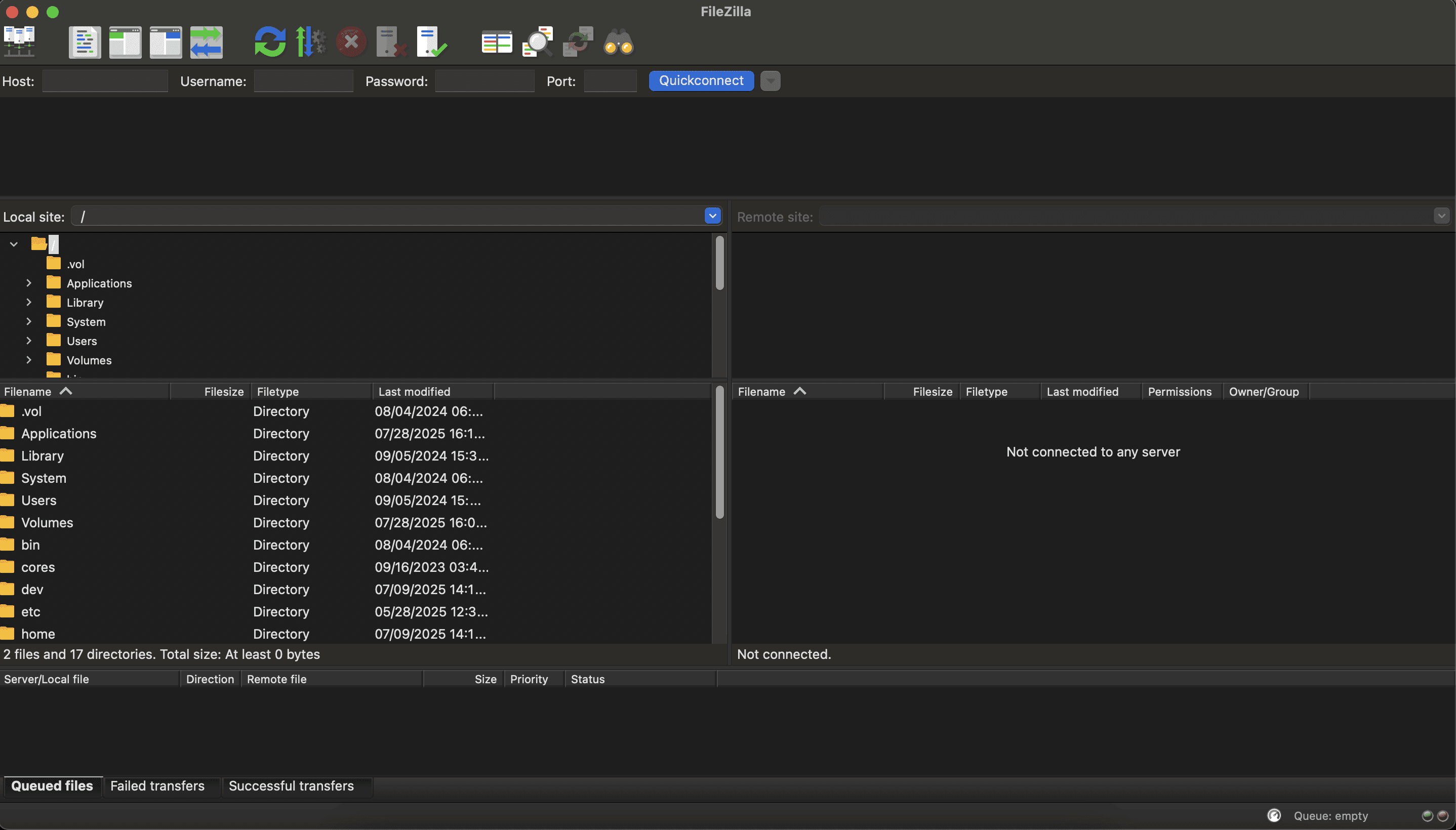
Once you open it, you'll see this interface. Don't panic! We will only use a small part of it.
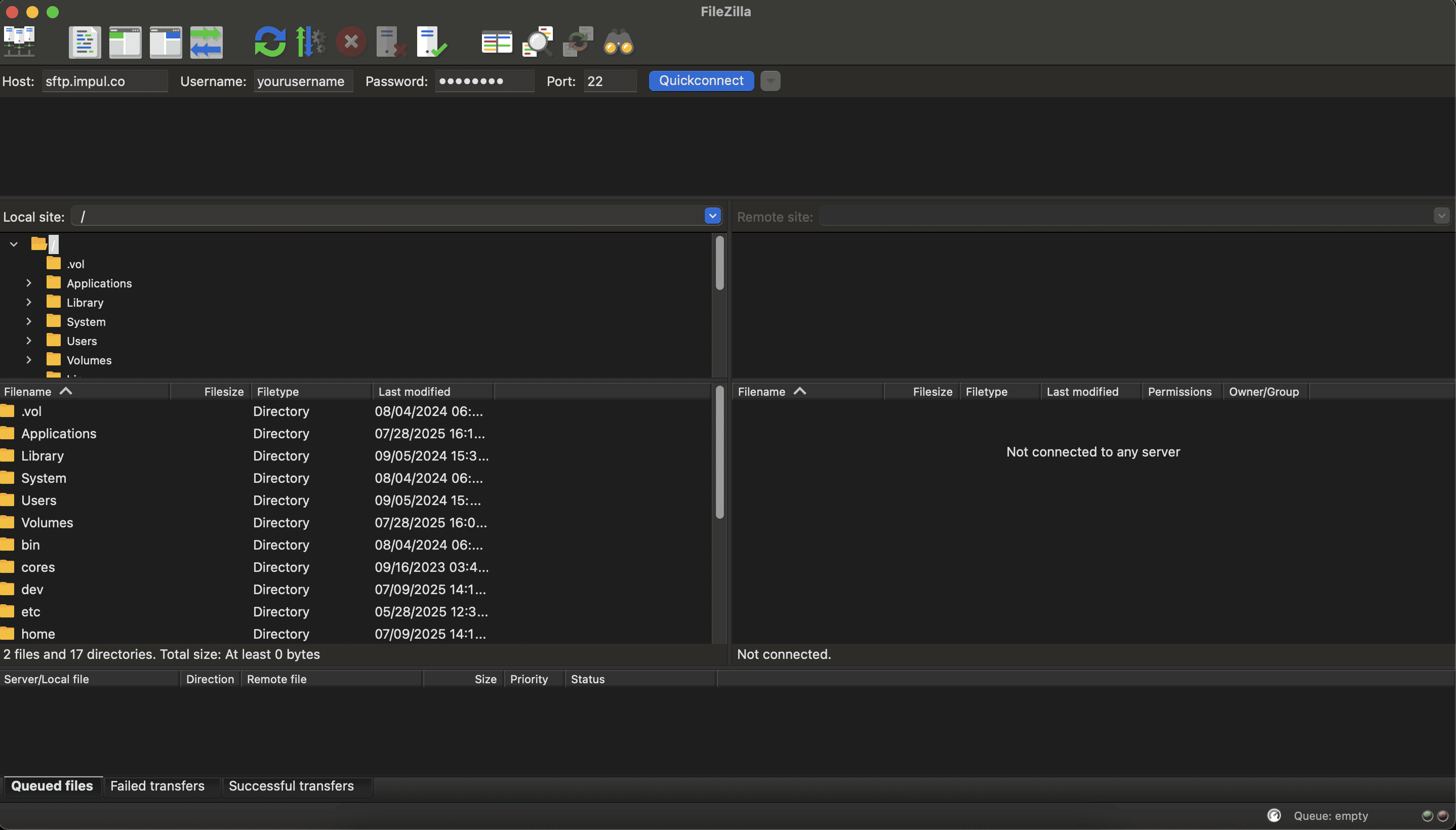
In the bar at the top you can see the Quickconnect section, this is where you can input your SFTP information:
Host: sftp.impul.co
Enter your username: Contact your Impulse representative
Enter your password: Contact your Impulse representative
Port: 22

The first time you click Quickconnect, it will ask you if you trust the server:
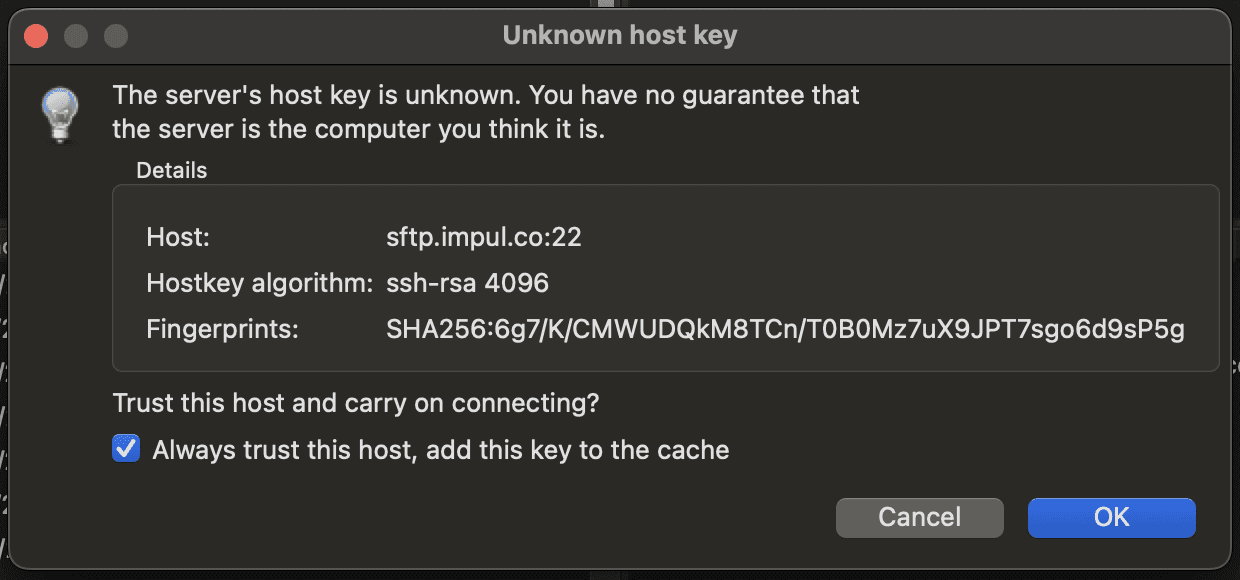
Check "Always trust this host" and click "OK"
You should then see some connection logs in the top section
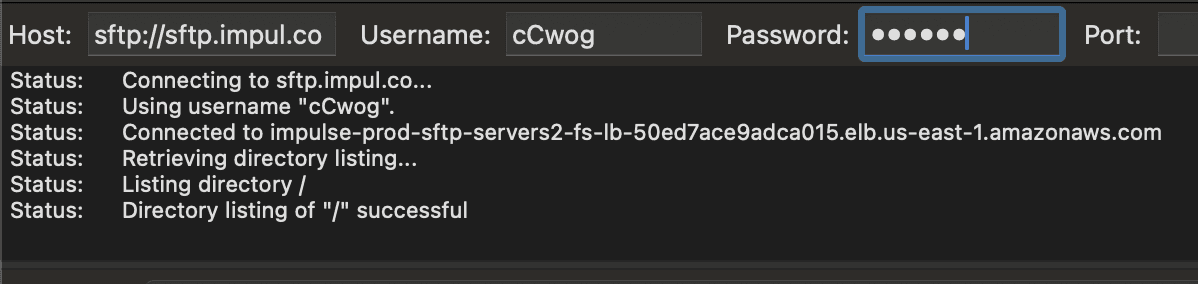
That's it! You're connected now you can drag and drop any images you want to transfer in this section
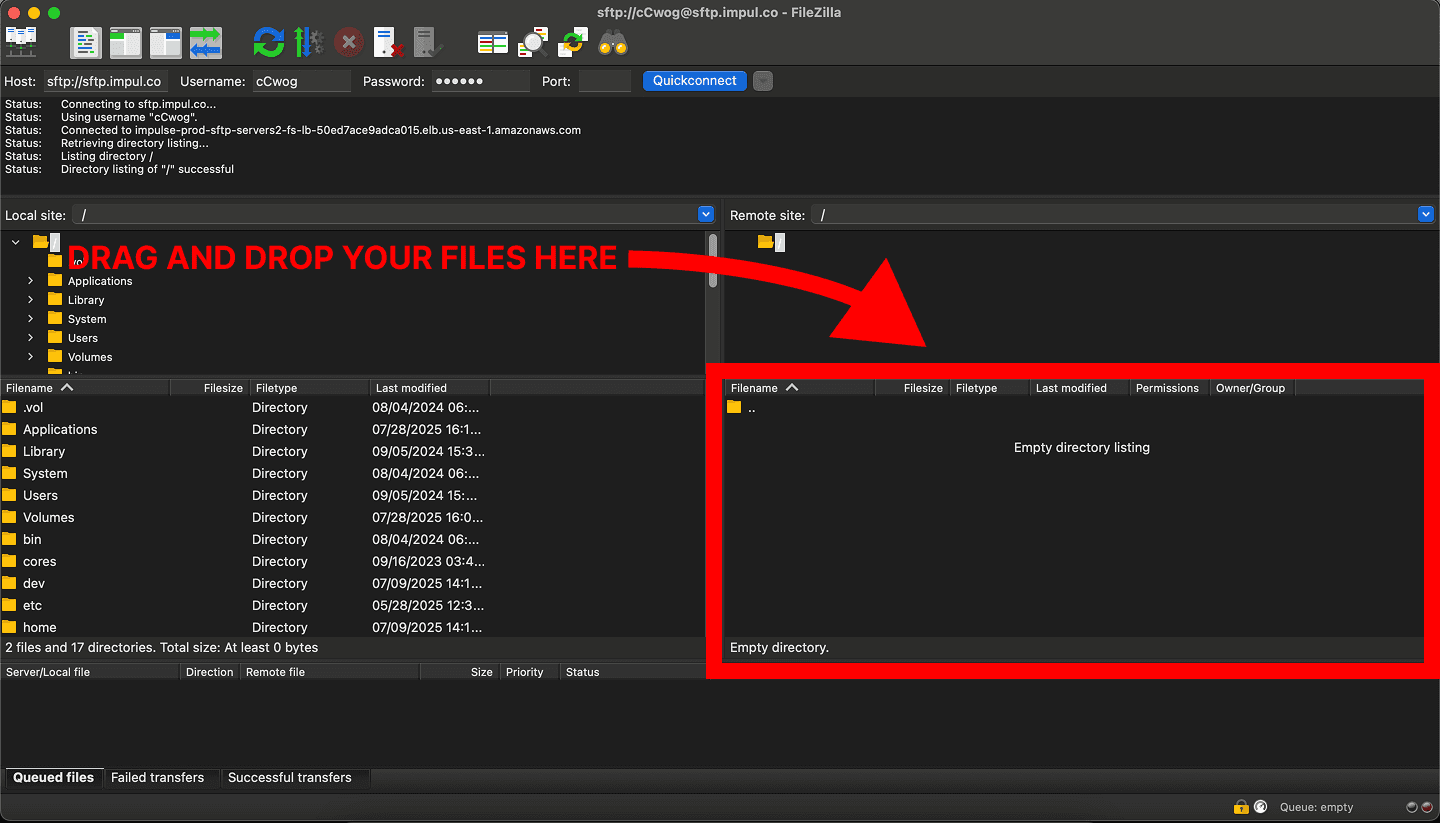
You can drag and drop from your file explorer directly or from the left hand side of FileZilla.
If the transfer works you should see it at the bottom

Use the Impulse web interface to upload from your browser
If you don't already have access to your event upload page you will need to reach out to your Impulse point of contact.
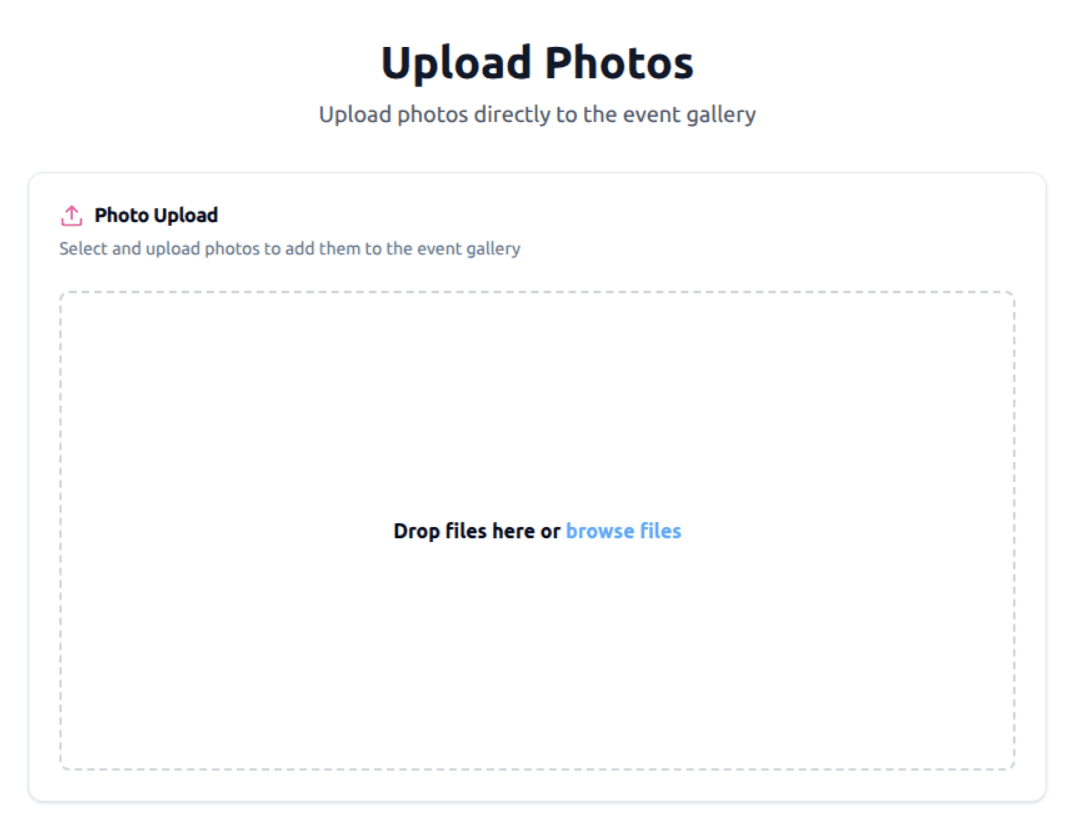
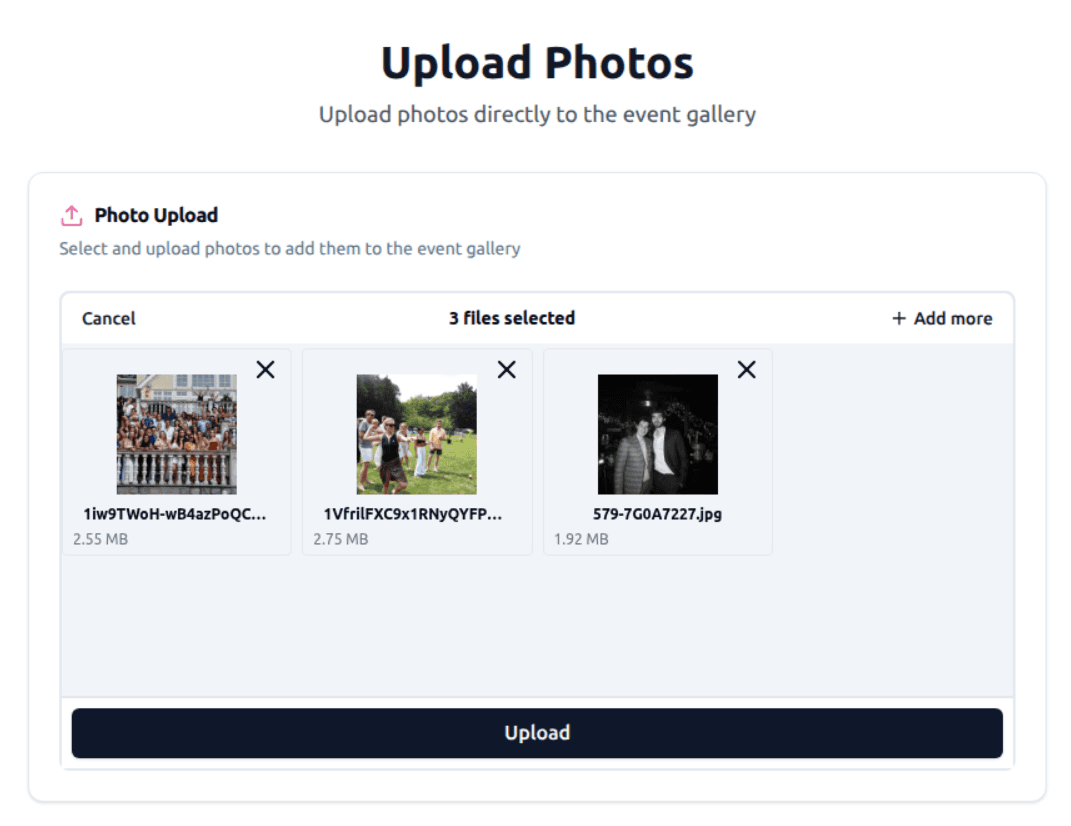
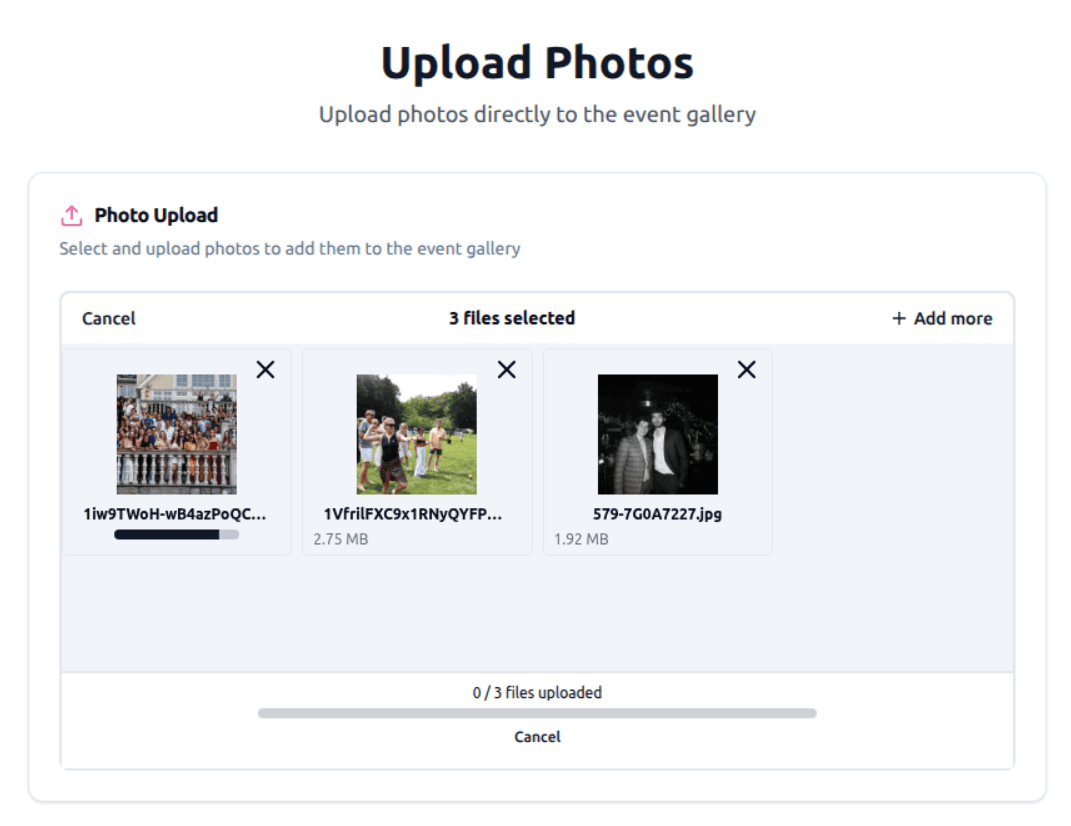
You can select files and upload them
Use the Impulse Photographer App on Mac
The Impulse iPhone app can also be used on a Mac laptop to upload pictures to your event.
To use the Impulse Photographer app you need to invited as a Photographer by your event admin, reach out to your Impulse contact point to know more.
Download the app here: https://apps.apple.com/us/app/impulse-photographer/id6740821340
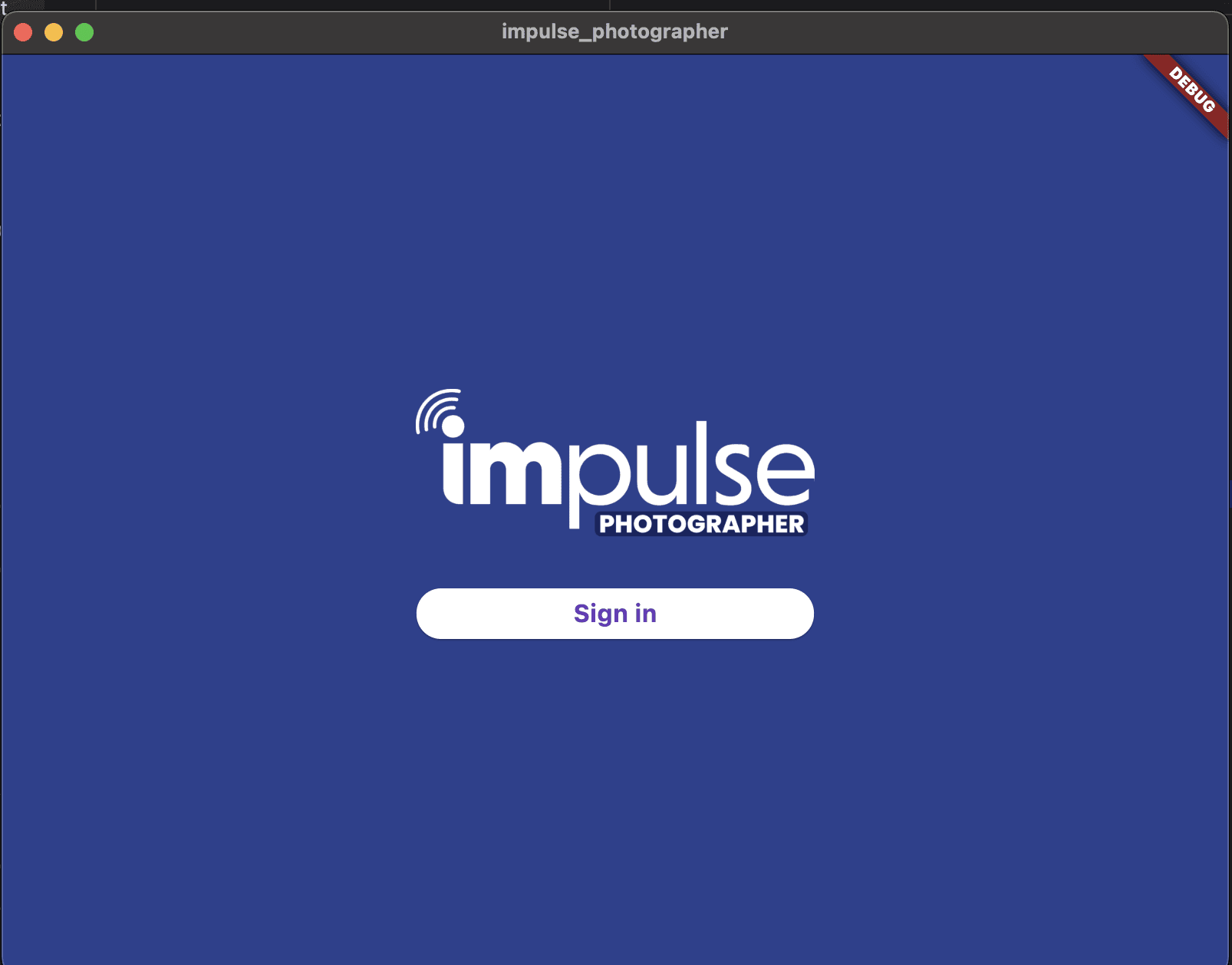
Login with the email that was invited by your event admin. If you've been invited to multiple events you may be asked to select which event to upload pictures for. You can also switch which event you're currently uploading for in the setting using the gear button at the top right.
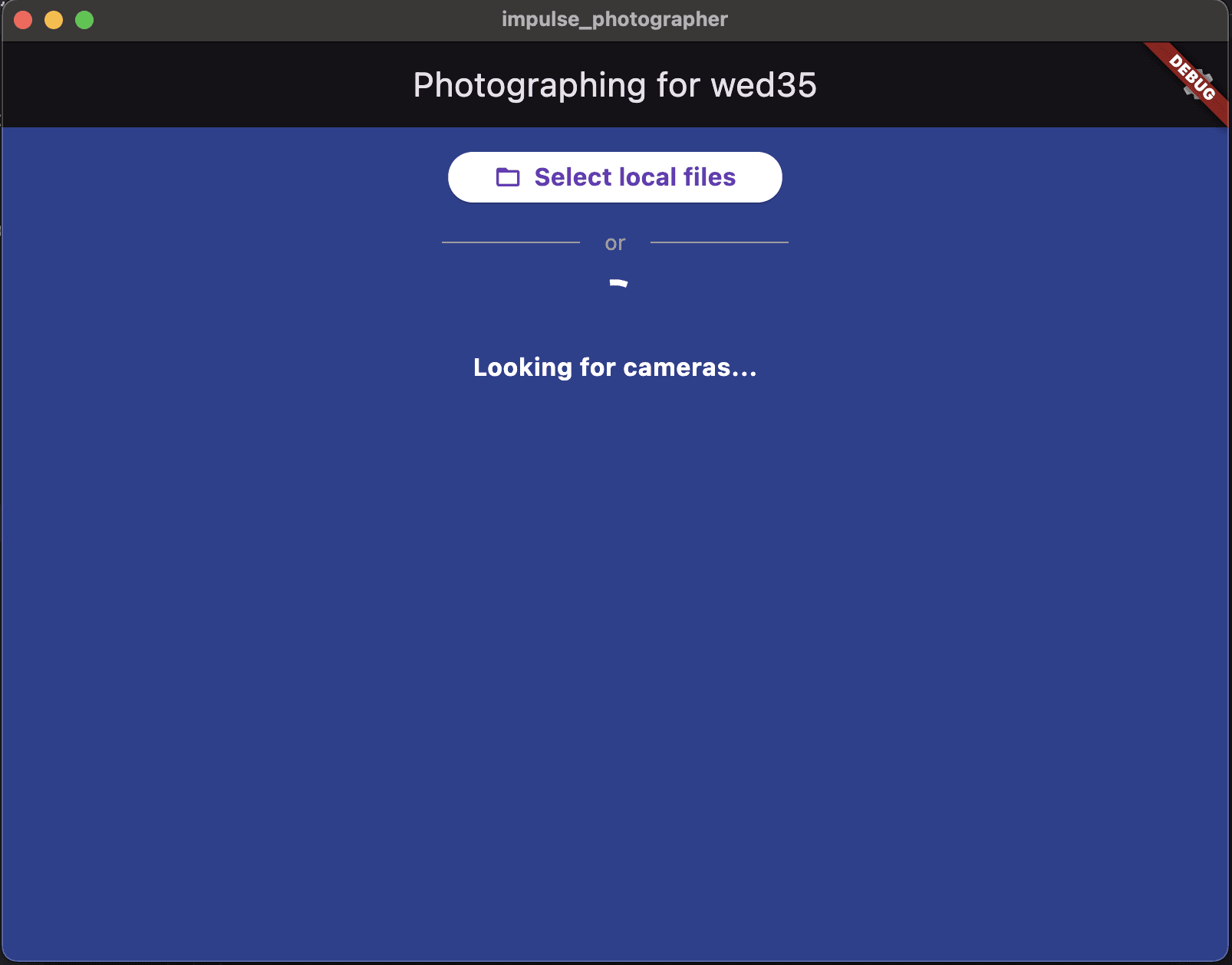
Click on "Select local files"
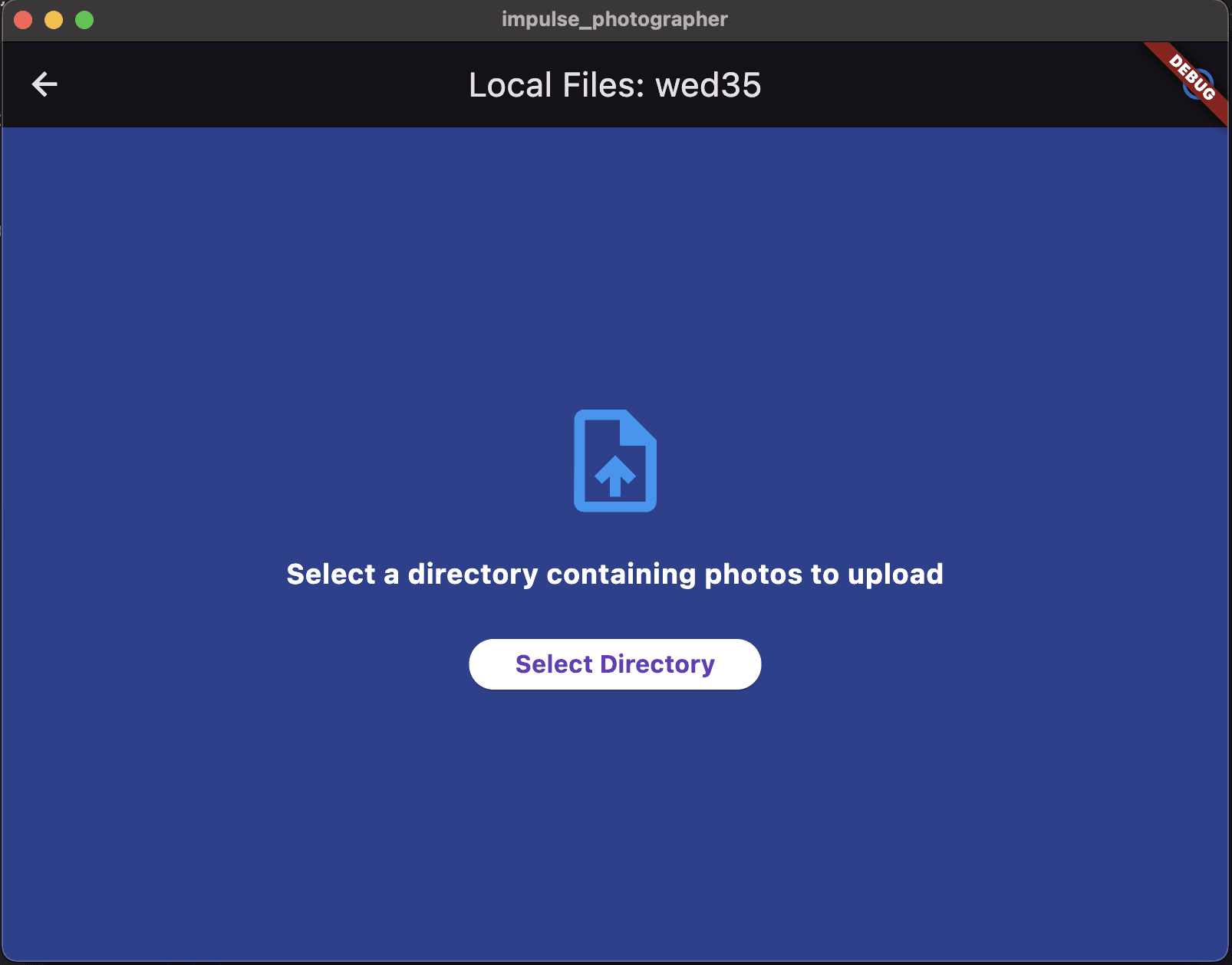
You can then select the directory in which your pictures are using "Select Directory", this will upload all the current and future pictures from the directory. As long as the app is running, you can keep adding files to the folder and they will automatically be uploaded.
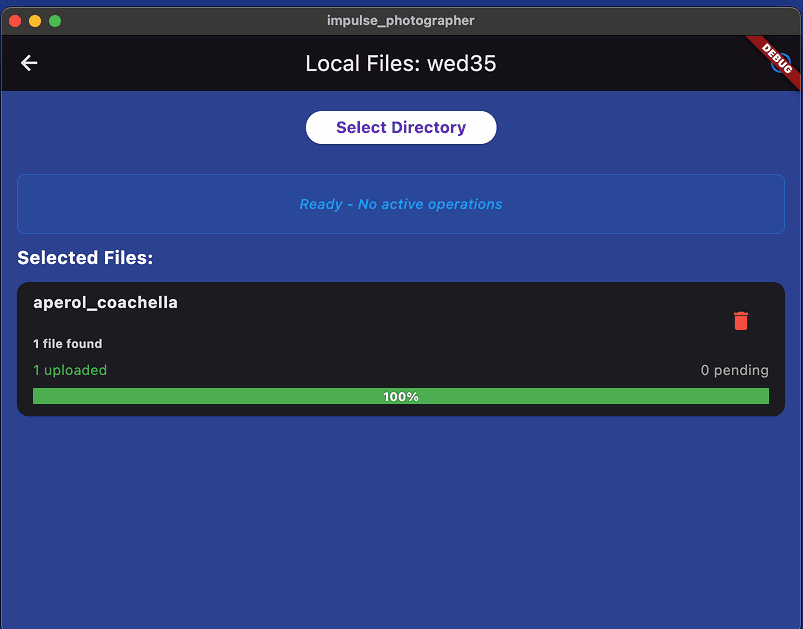
This is what it looks like when a directory is selected
Upload to Google Drive or Dropbox and connect the folder to your Impulse event
Impulse supports syncing from a Google Drive or Dropbox folder directly, reach out to your Impulse point of contact to get it set up
Take the Next Step with Impulse
Start your journey toward more engagement, greater social reach, and data driven decisions. Use Impulse and unlock your events' full potential.