
How to Export Your Event Guest List to CSV
Export your event guest list to CSV in under a minute. Pick the columns, click Export CSV, and open the file in Excel or Google Sheets.

5 min read
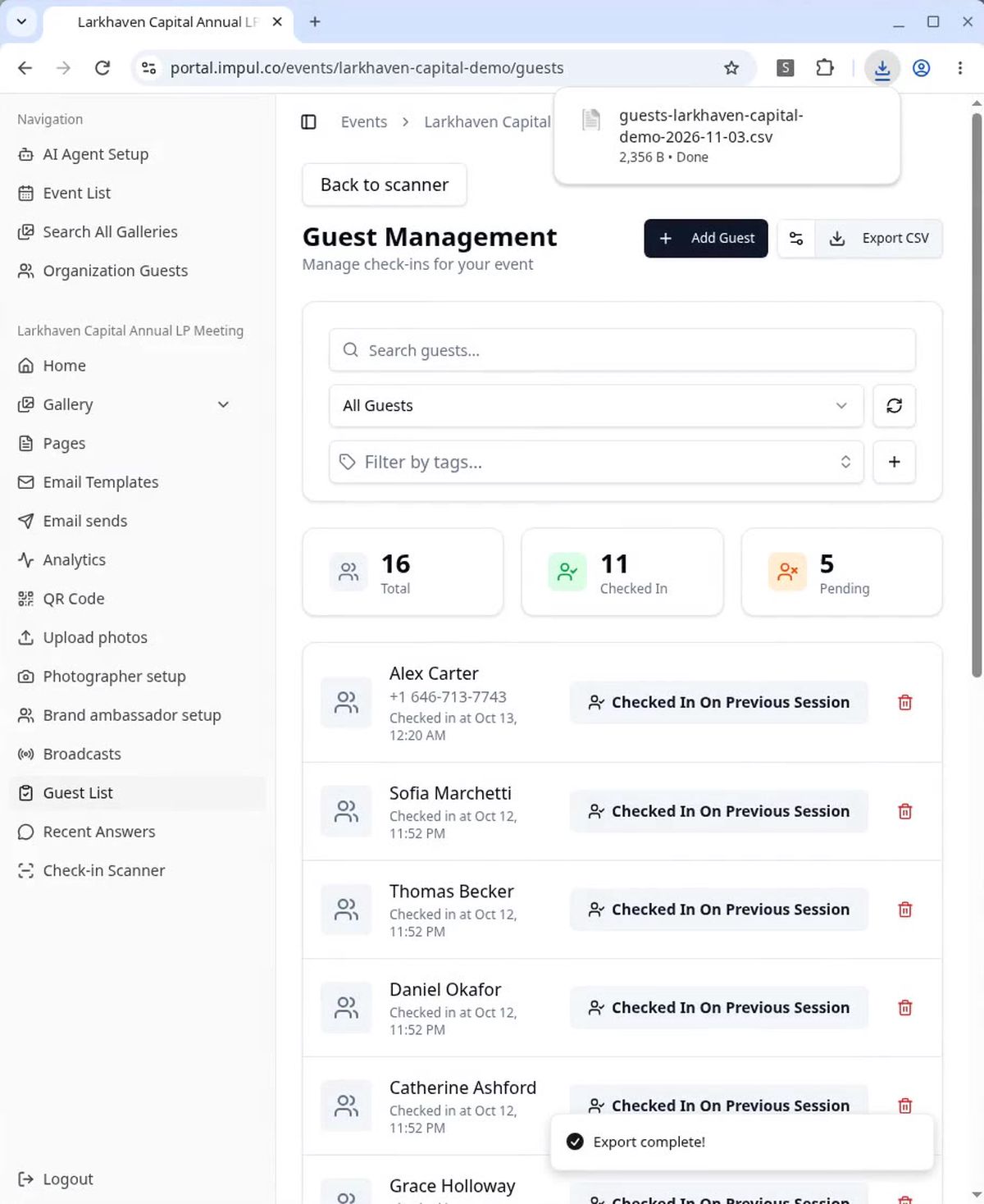
You can export your event guest list to CSV in under a minute. Open your event in the Impulse client portal, go to Guest List, and click Export CSV. The file downloads straight to your computer, ready for Excel, Google Sheets or your CRM. This guide walks through each step, plus how to choose your columns and what each column means.
Impulse collects guest details when guests sign up to get their event photos. Each signup becomes a first-party contact with the answers to your signup form, any tags you added and check-in times if your team checked guests in. The export puts all of it in one file.
What You Need Before You Start
An Impulse event with guest signups. Don't have an account yet? Create a free account.
Access to the Impulse client portal at portal.impul.co
Excel, Google Sheets or any app that opens CSV files
Step 1: Open Your Event in the Impulse Portal
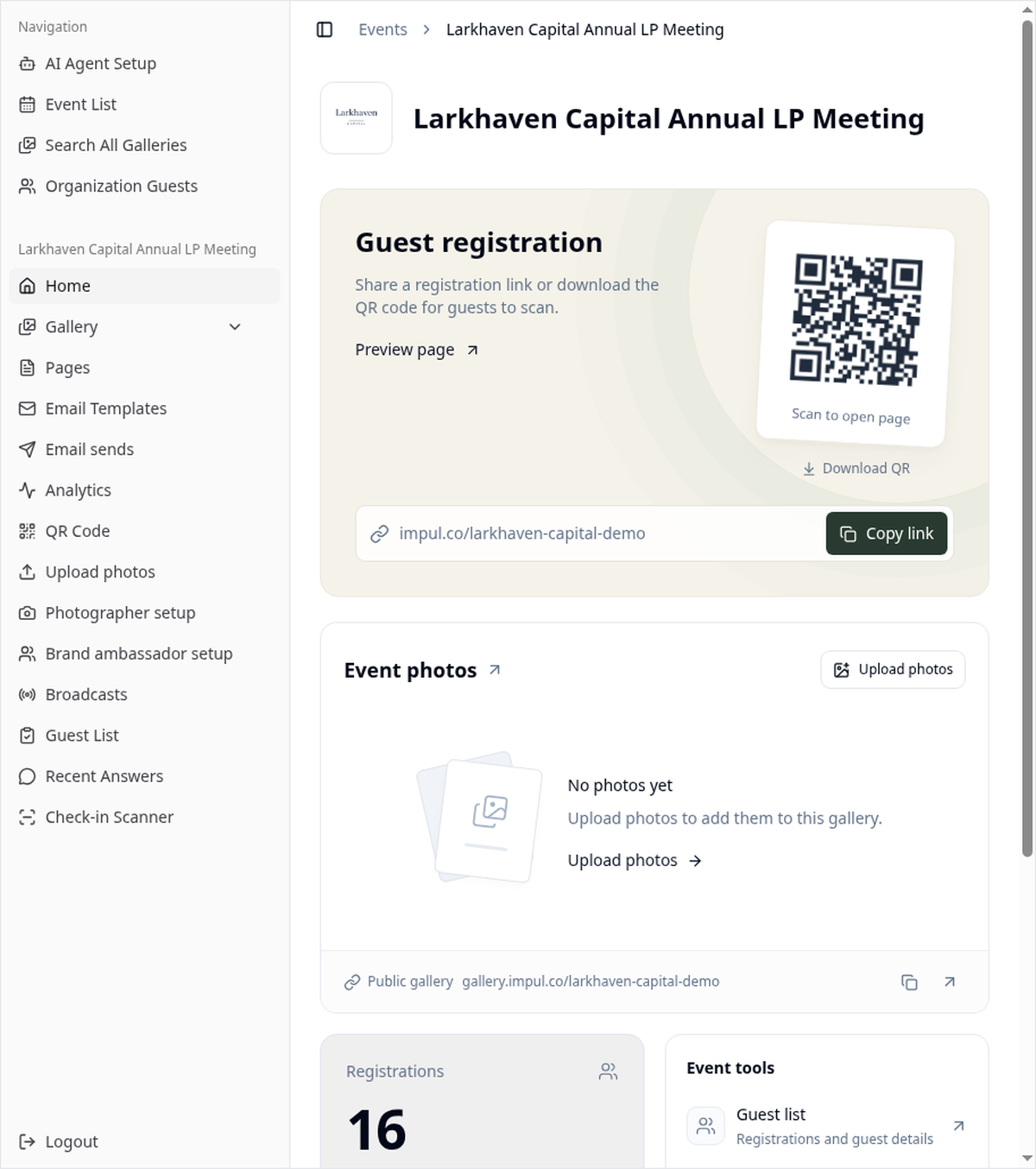
Sign in to the Impulse client portal at portal.impul.co and open your event from the Event List.
Step 2: Go to Guest List
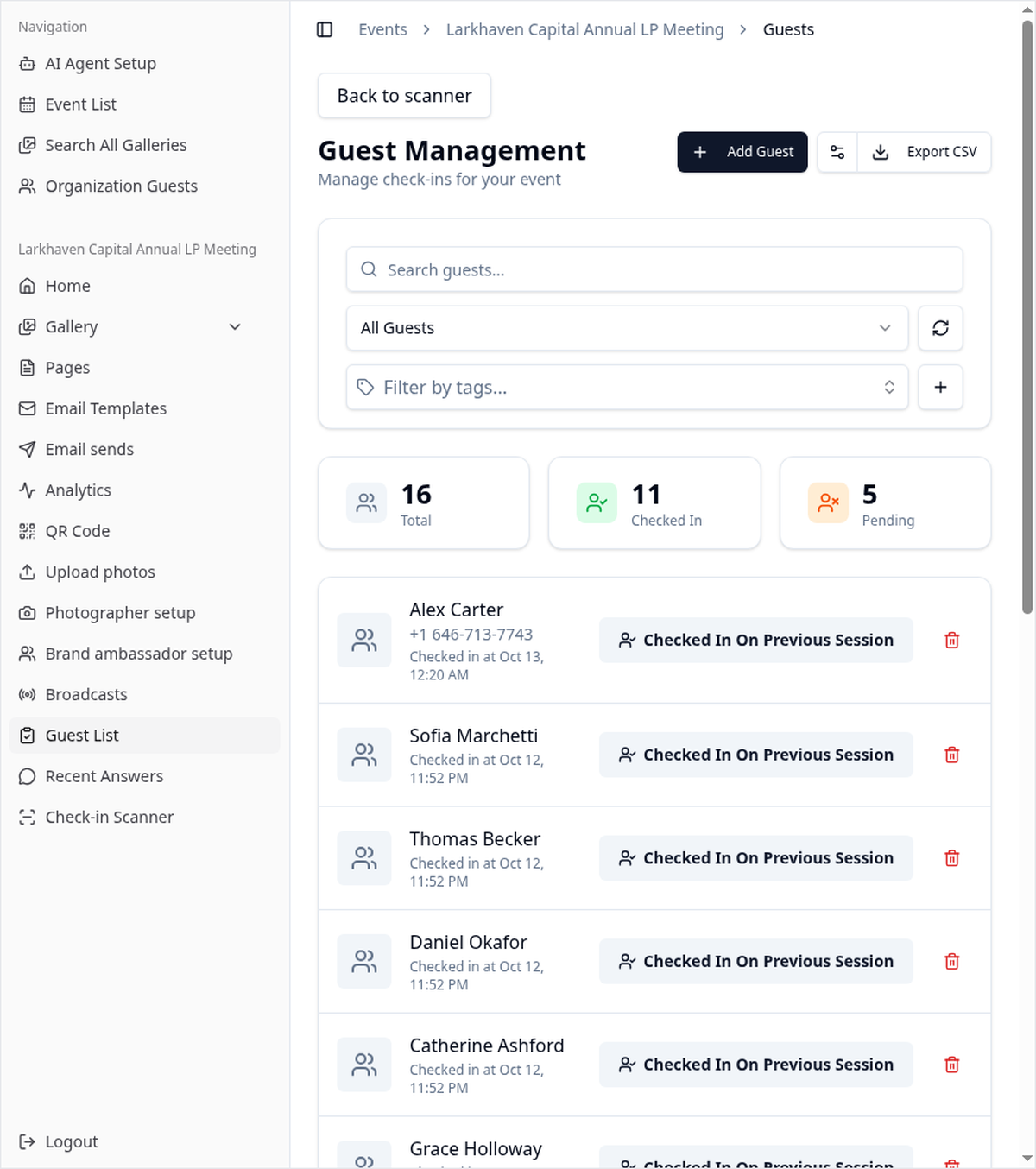
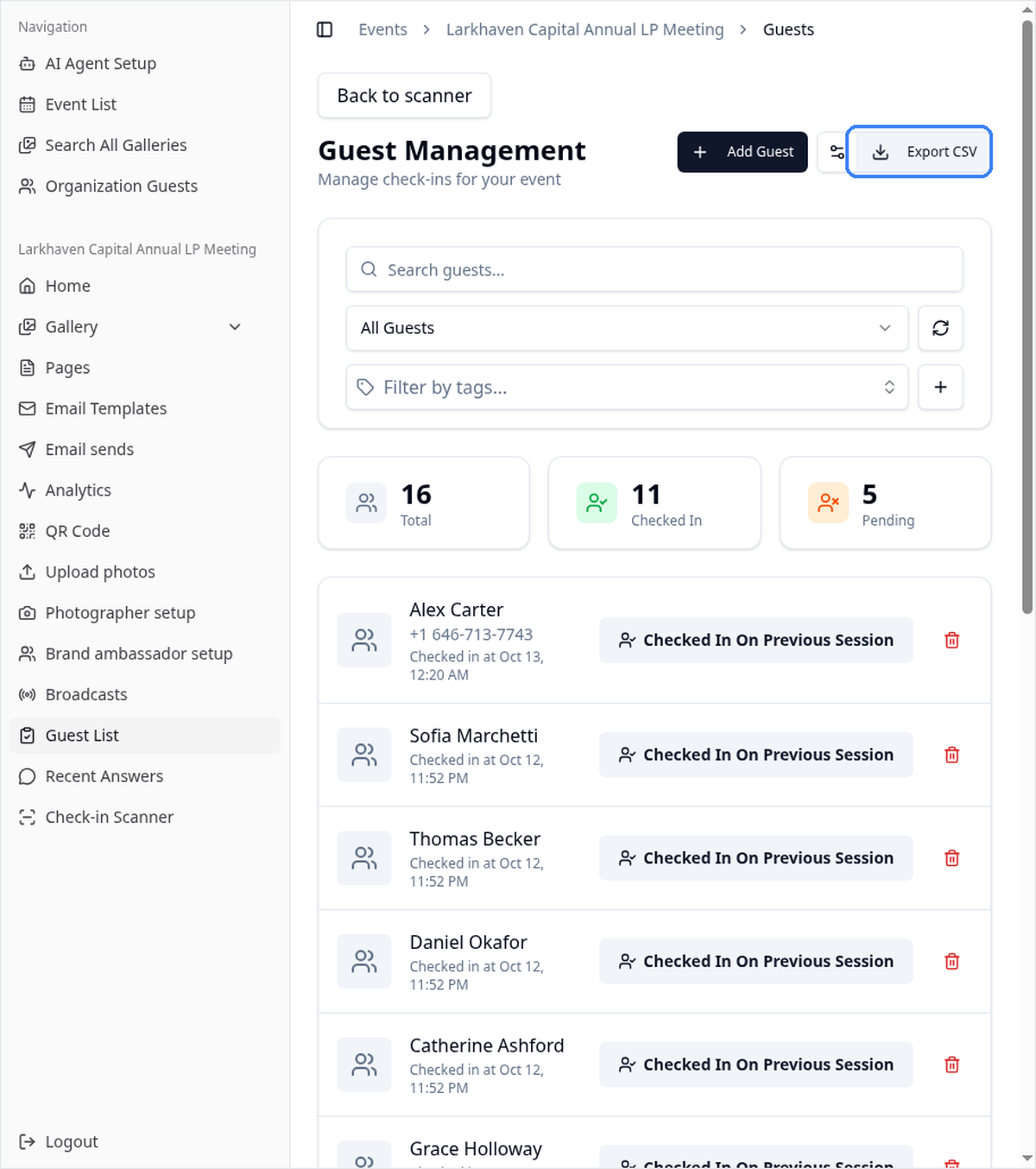
In the left menu, click Guest List. The Guest Management page lists every guest, with Total, Checked In and Pending counts at the top.
Step 3: Choose Your Columns (Optional)
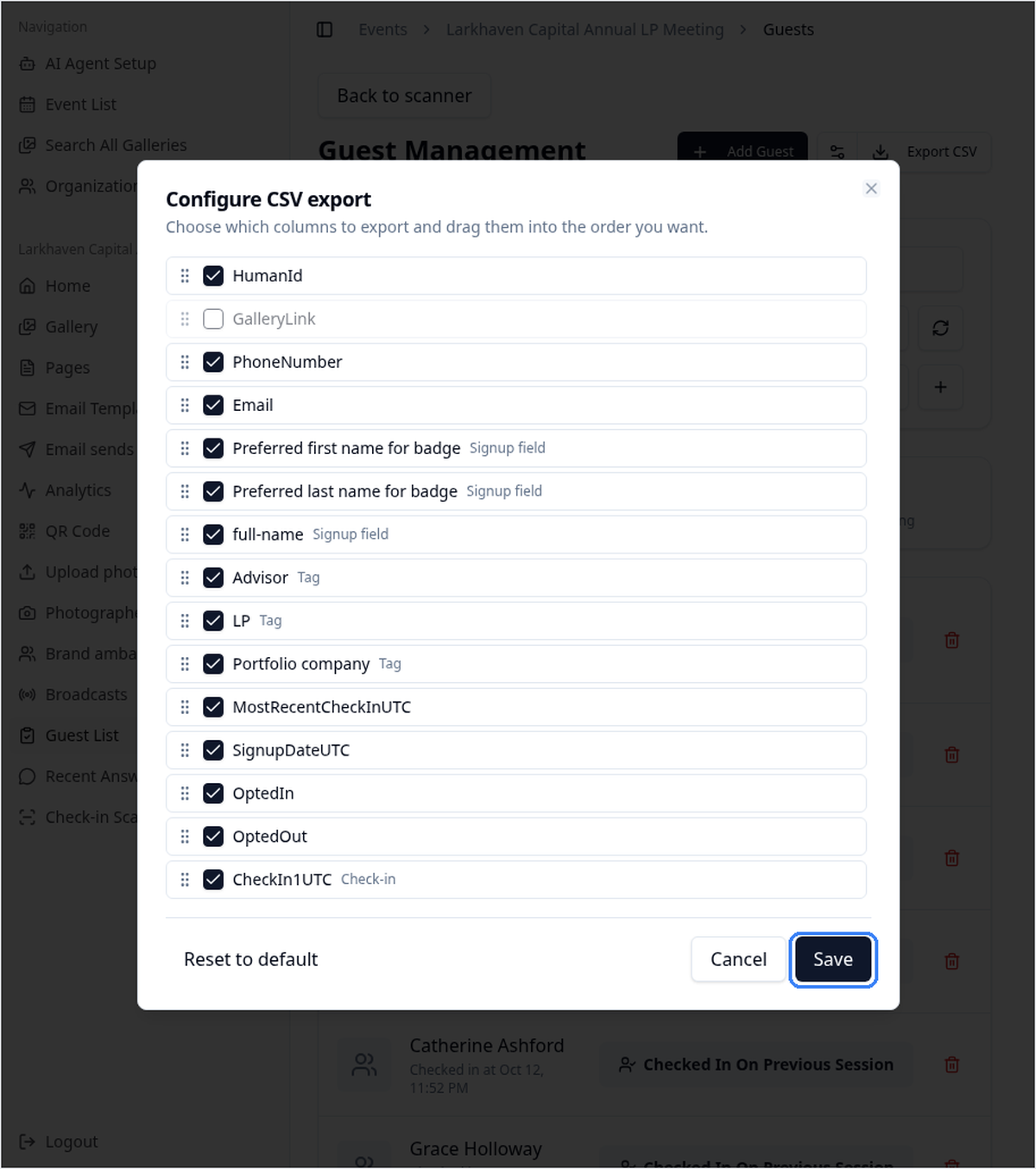
At the top right, click the settings icon just left of Export CSV to open Configure CSV export.
Tick the columns you want and untick the ones you don't.
Drag a column by its handle to change its order in the file.
Reset to default brings back the standard set.
Click Save to keep your choices. Columns from your event are tagged so you can tell them apart: Signup field for the questions on your signup form, Tag for the tags you use on guests, and Check-in for check-in times.
GalleryLink is off by default. Turn it on if you plan to send each guest a link to their own photos.
Step 4: Click Export CSV
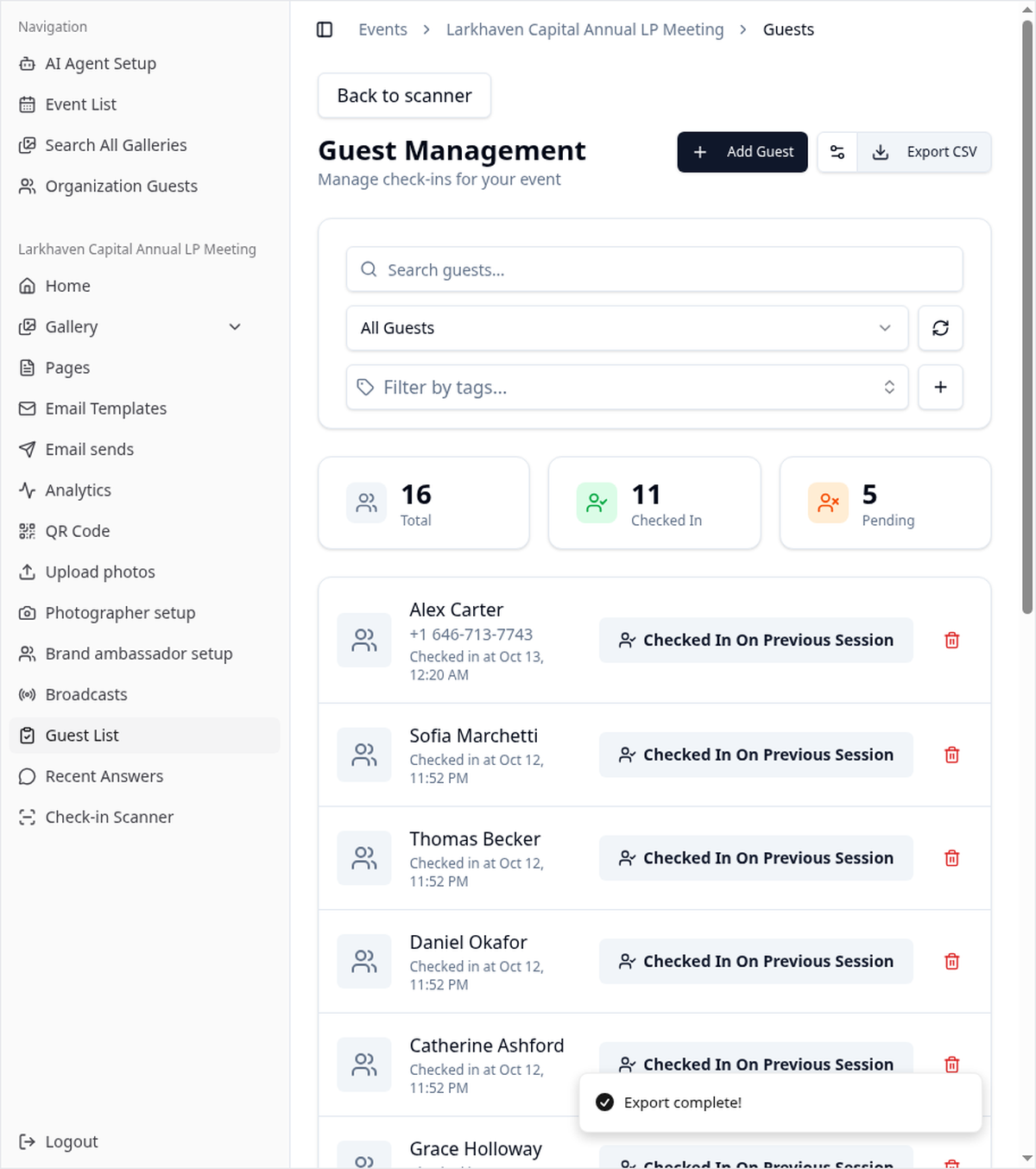
Click Export CSV. An Export complete! message appears and the file downloads right away, with a name like:
guests-<event-code>-<date>.csv
For example, guests-larkhaven-capital-demo-2026-11-03.csv.
Step 5: Open the File in Excel or Google Sheets
Excel: open the file, or use Data > From Text/CSV to control how each column is read.
Google Sheets: go to File > Import > Upload and choose the CSV.
Check that phone numbers kept their country code. Spreadsheet apps sometimes change long numbers. If that happens, import the column as text, or send the original file to your CRM without saving it from a spreadsheet first.
What's in the Export
| Column | What it holds |
|---|---|
| HumanId | The Impulse ID for the guest |
| GalleryLink | A link to the guest's photo gallery. Off by default, so turn it on in Configure CSV export if you want it. |
| PhoneNumber | The mobile number the guest signed up with |
| The guest's email, if your signup form asks for it | |
| Your signup fields | One column for each field on your signup form, such as name or company |
| Your tags | One column per tag, true or false for each guest. For example, an LP meeting might tag guests as Advisor, LP or Portfolio company. |
| MostRecentCheckInUTC | When the guest was last checked in, in UTC, if your team checked guests in |
| SignupDateUTC | When the guest signed up, in UTC |
| OptedIn | Marketing consent: the guest ticked the marketing opt-in checkbox when they signed up |
| OptedOut | Unsubscribe flag: the guest replied STOP to your texts |
| CheckIn1UTC | The guest's check-in time, in UTC, if your event uses event check-in. Tagged Check-in in Configure CSV export. |
All times are in UTC. Convert them to your local time zone before you share the file with your team. Guests who never checked in have an empty check-in cell.
Before you use the list for marketing, remove guests flagged in OptedOut, and keep only guests flagged in OptedIn.
What to Do With Your Guest List
Send leads to your CRM. Follow how to send event leads to HubSpot or how to send event leads to Salesforce.
Check attendance. Compare signups with check-ins to see who showed up.
Report to stakeholders. For investor events such as an annual LP meeting, the tags show at a glance how many LPs, advisors and portfolio companies attended. See Impulse for private equity.
Frequently Asked Questions
Can I choose which columns are in the export?
Yes. On the Guest List page, click the settings icon next to Export CSV to open Configure CSV export. Tick the columns you want, drag them into order and click Save.
Why are the times in UTC?
UTC keeps times consistent across time zones and imports cleanly into CRMs. Columns ending in UTC are in UTC.
Does the export include guests who didn't check in?
Yes. Every guest on the Guest List is in the file. Guests who didn't check in have empty check-in columns.
Can I open the file in Excel or Google Sheets?
Yes. The export is a standard CSV file. Open it in Excel, or import it in Google Sheets with File > Import.
How do I get the guests' photo links?
Turn on GalleryLink in Configure CSV export before you click Export CSV. Each row then has a link to that guest's photos.
Start Capturing Your Guest List
Impulse turns guests who want their photos into first-party contacts, with no app required. Photos reach guests in seconds with image recognition, and every signup lands in your guest list, ready to export. Create a free account to try it on your next event.
Take the Next Step with Impulse
Start your journey toward more engagement, greater social reach, and data driven decisions. Use Impulse and unlock your events' full potential.