How to send a broadcast to your attendees
In this guide we'll walk through how to send a message to all or some of your attendees from the Impulse portal.
First head to the Broadcast page on your Impulse portal (you should have received a link from your account executive or login at https://portal.impul.co)
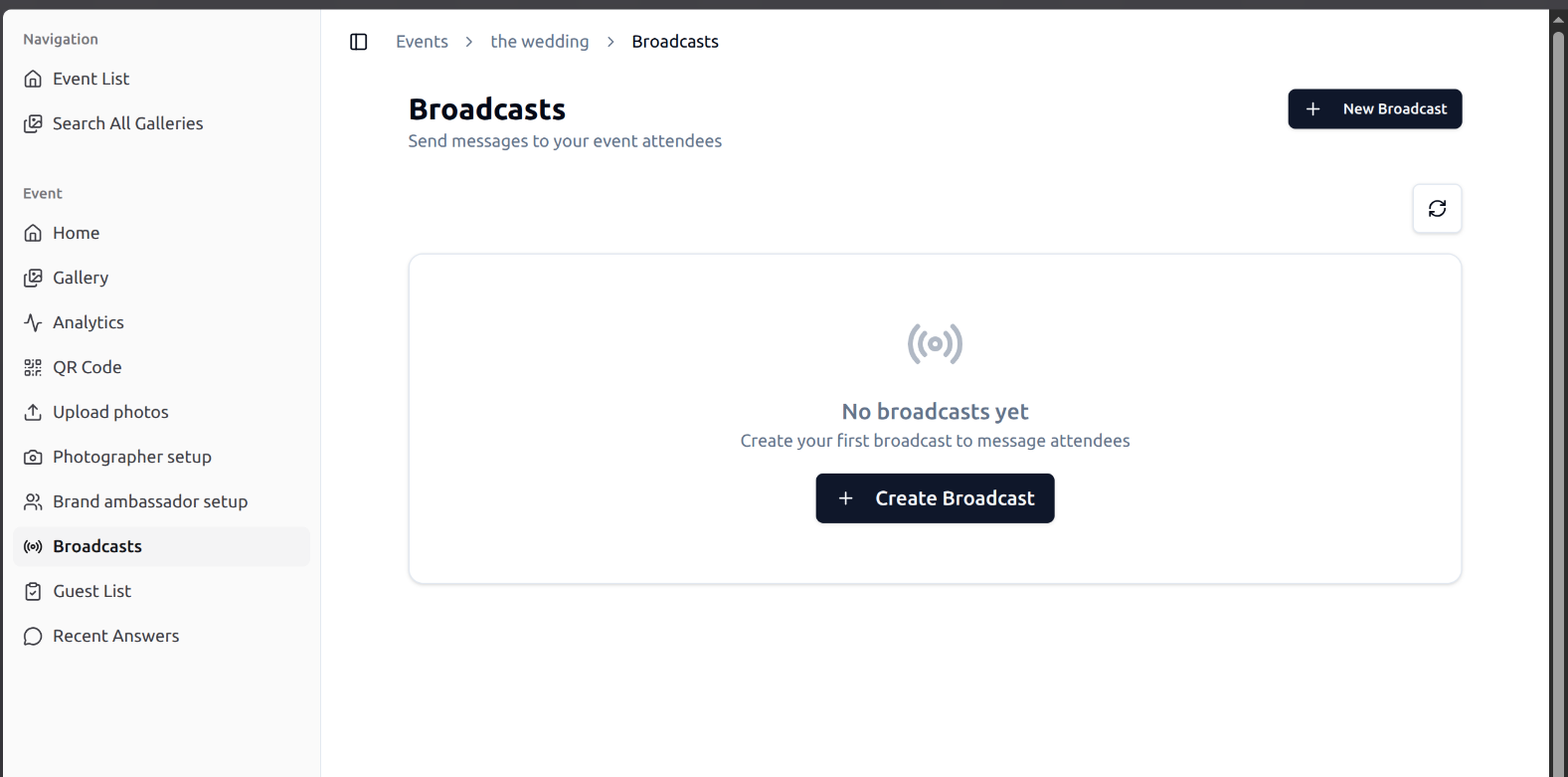
Click create a new broadcast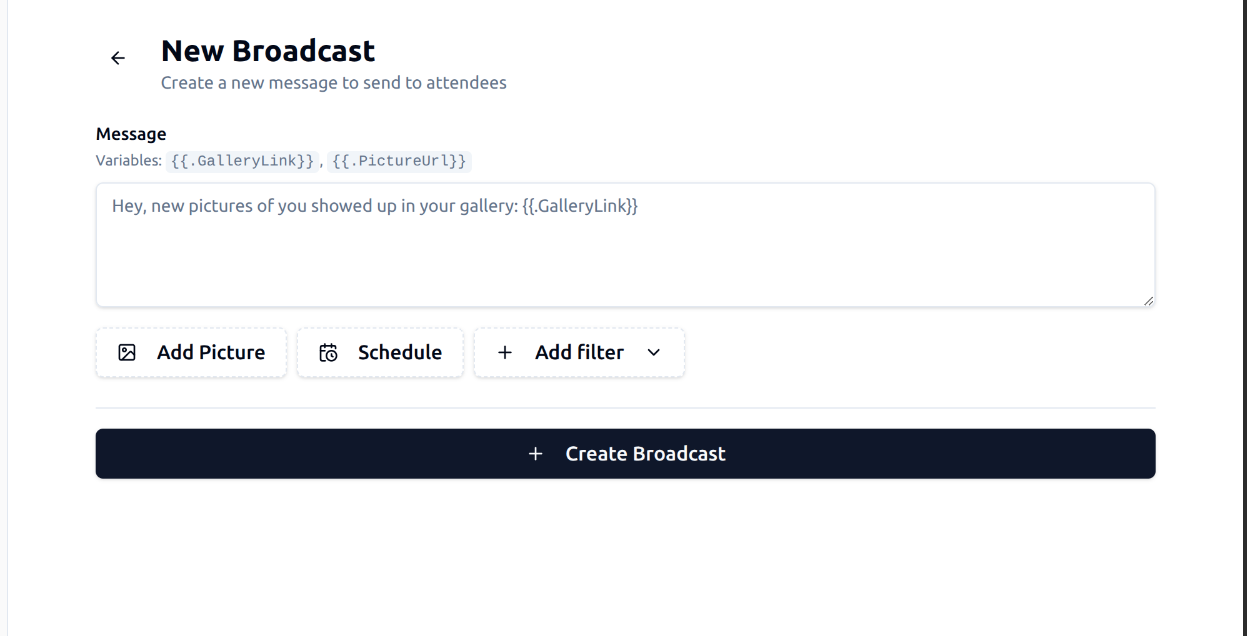
In here you can type the message you want to send to your guests, schedule it, and add filters to only send to a segment of the attendees.
Once you click the "Create broadcast" button, the broadcast will not be sent right away.
To get your broadcast sent either click the "Send Now" button or add a schedule for it to be sent automatically at a given time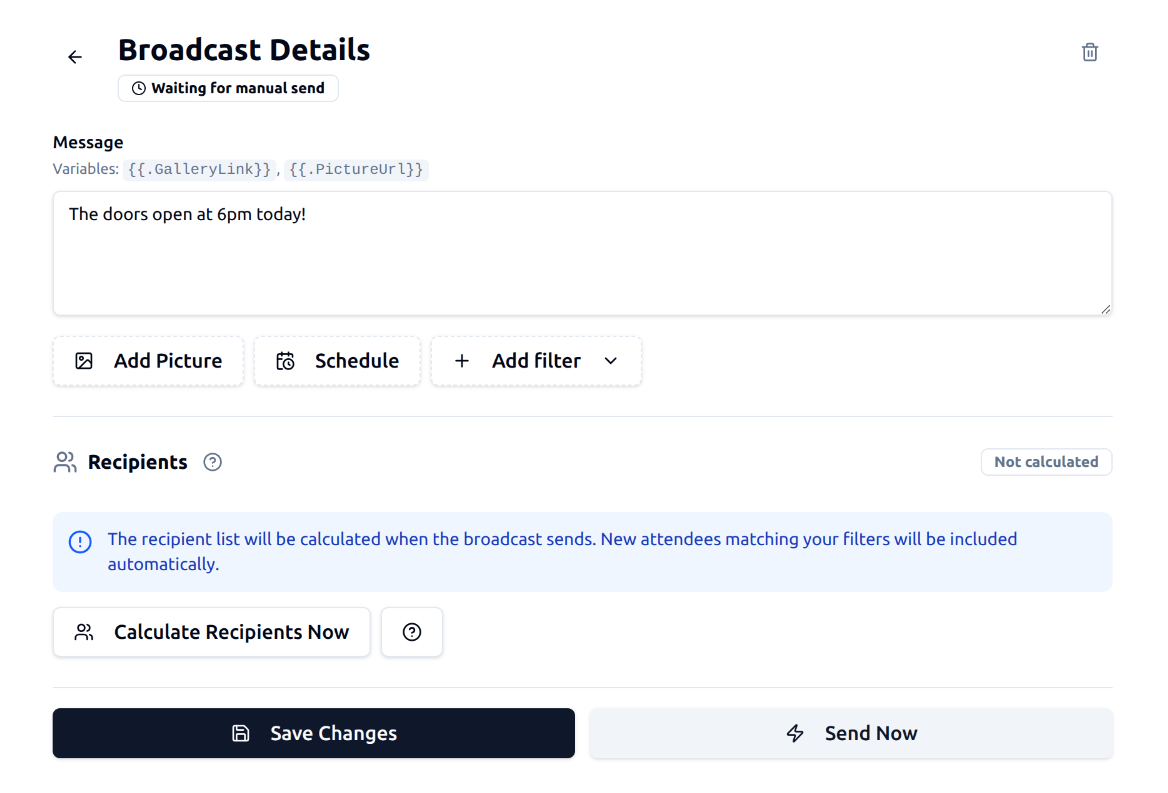
Use cases
Let's go through a few use cases
Sending a message at a specific time
To schedule a message, click the "schedule" button
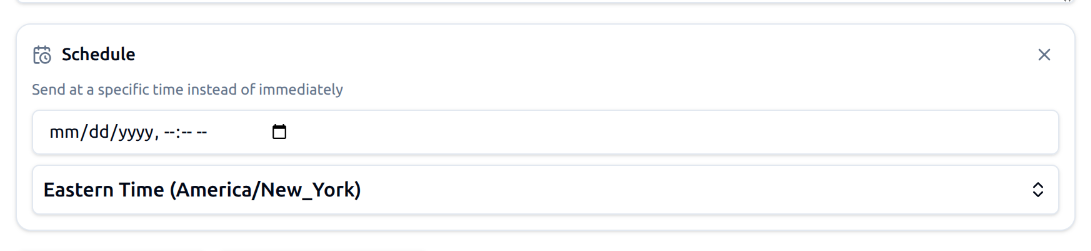
Once you set a date and click "Save", the message will automatically be sent at the given time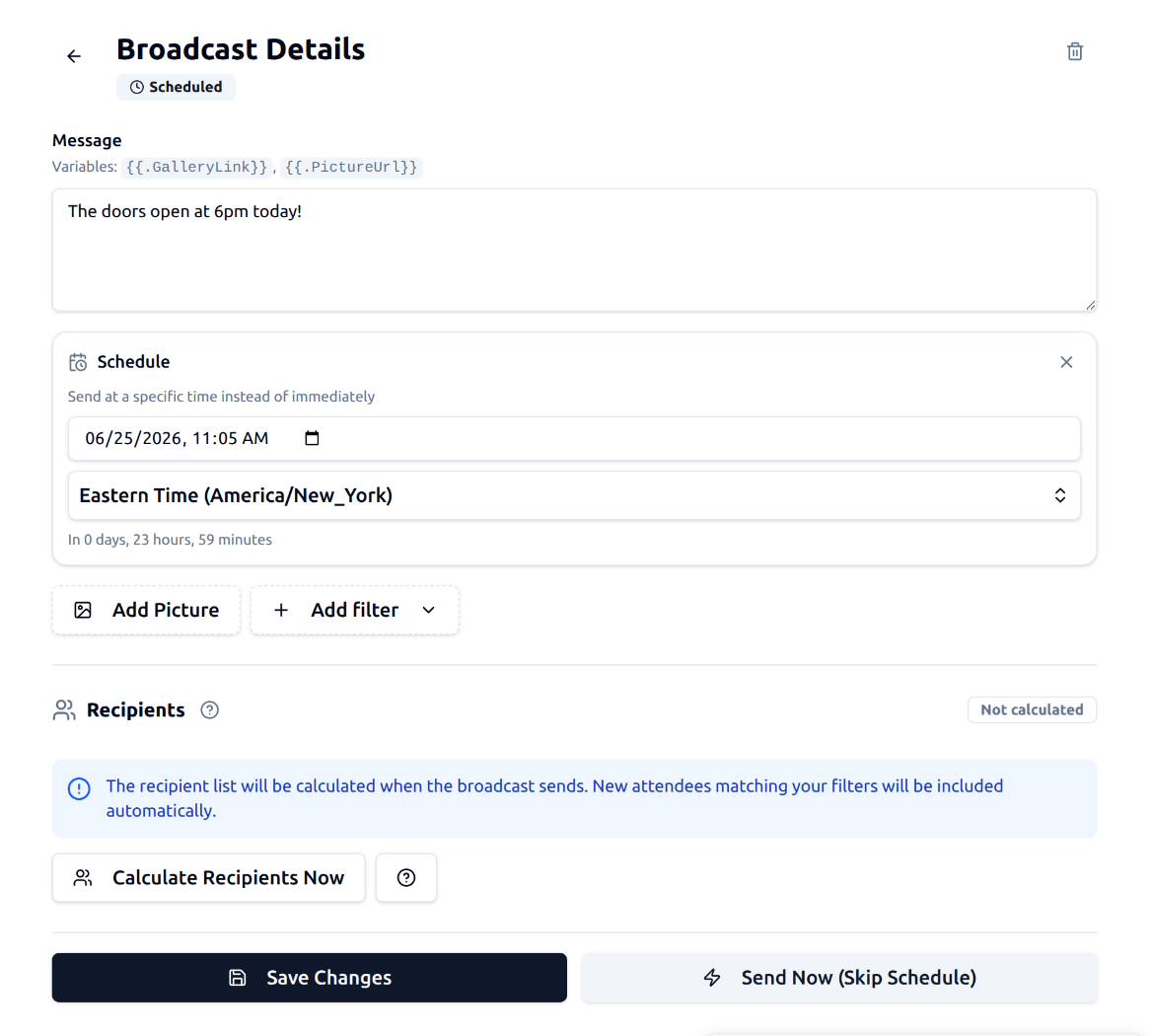
Sending a message to a segment of your attendees
Sometimes you want to only send a message to a part of your audience, to do so you can use the "add filter" button. It will show you a list of the possible filters, each one will affect who will receive the message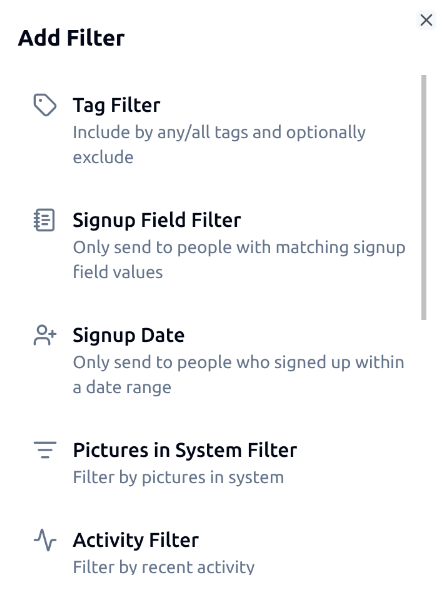
A few example:
To send a message only to people that did not upload their selfie yet, use the "No Selfie" filter
To send a message only to people that came at your event today, use the "Activity" filter and set the "Recent activity" to 1 (today)
If your audience is pre-tagged, you can use the "Tag" filter to only send to people with or without a specific tag
Take the Next Step with Impulse
Start your journey toward more engagement, greater social reach, and data driven decisions. Use Impulse and unlock your events' full potential.