
How to Send Event Leads to Braze (API Sync or CSV Import)
Send event leads to Braze with a direct API sync or a CSV import. Map guest fields, format phones in E.164 and build a segment fast.

8 min read
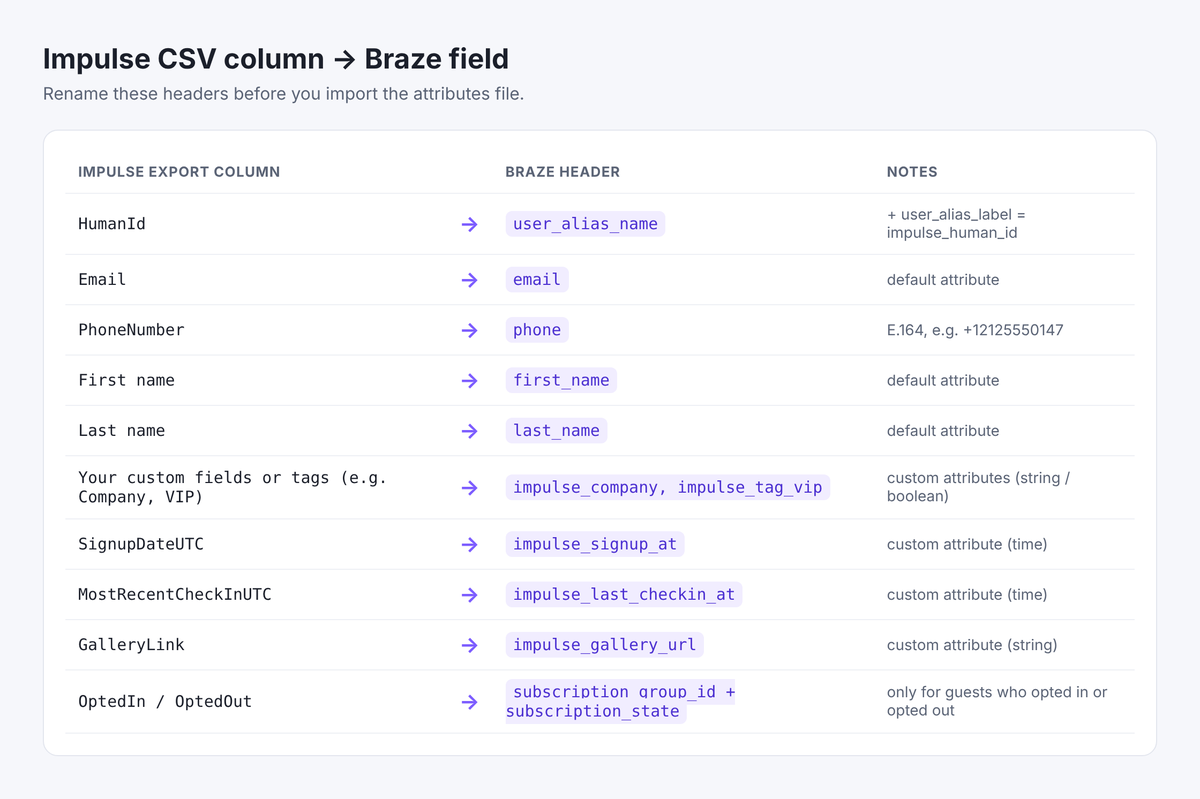
There are two ways to send event leads to Braze. With a direct API sync, Impulse pushes guests to Braze in real time as they sign up and check in. With a CSV import, you export your guest list after the event and upload it to Braze in about 15 minutes. Either way, every guest becomes a Braze user profile you can put in a segment, so your follow-up goes out while the event is still fresh. This guide covers both, with a step-by-step CSV walkthrough plus how to format phone numbers, add events and keep SMS consent clean.
Impulse collects guest details when guests sign up to get their event photos. Image recognition finds each guest's photos and delivers them in seconds, and each signup becomes a first-party contact with the answers to your signup form, any tags you added and check-in times if your team checked guests in.
Option 1: Direct API Sync to Braze
Impulse can send guests straight to Braze through the Braze REST API (/users/track). Each signup and check-in reaches Braze in seconds, with no files to export or import.
To set it up:
Create a Braze REST API key with the
users.trackpermission, and note your workspace's REST endpoint.Contact Impulse or your account team to turn on the Braze sync for your events, and share the key and endpoint.
Impulse maps guest fields such as email, phone, name, your signup answers and check-in times to Braze attributes and events.
Consent is respected: only guests who opted in to marketing are added to your SMS subscription group.
Use the API sync when you run events often or want to trigger a Canvas while guests are still at the event. Use the CSV import below for a one-off event or to backfill past events.
Option 2: CSV Import
What You Need Before You Start
An Impulse event with guest signups. Don't have an account yet? Create a free account.
A Braze workspace and a user role that can import users (Audiences > Import Users)
Excel, Google Sheets or any app that edits CSV files
If you plan to text guests: the ID of your Braze SMS subscription group
Step 1: Export Your Guest List from Impulse
Sign in to the Impulse client portal at portal.impul.co, open your event from the Event List and click Guest List in the left menu.
Open Configure CSV export to choose which columns to include and drag them into order. Turn on GalleryLink if you want to send each guest a link to their photos from Braze.
Click Export CSV. The file downloads to your computer.
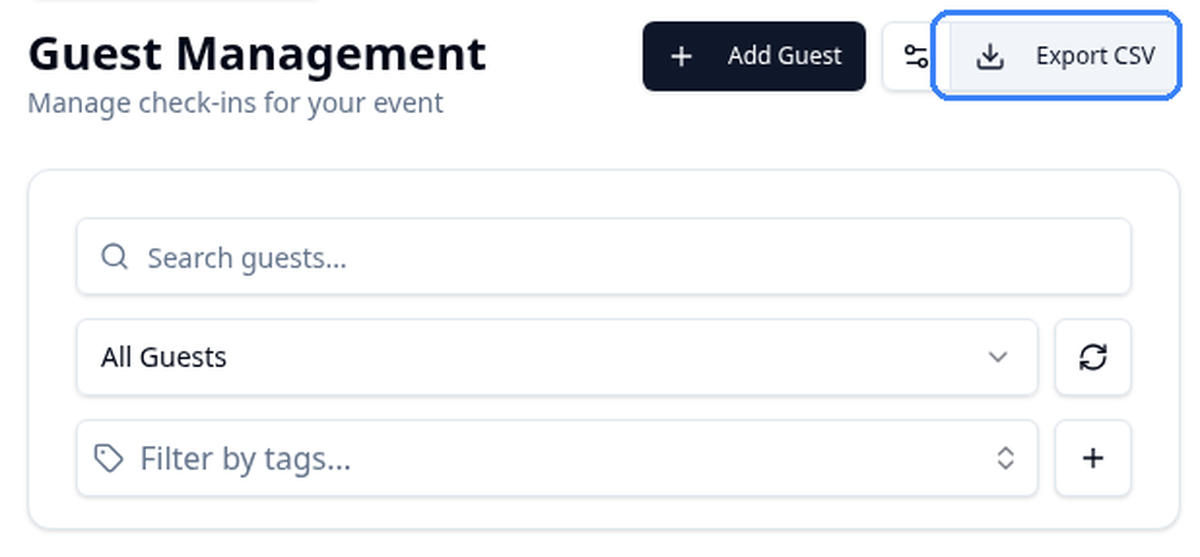
For a full walkthrough of the export and every column, see how to export your event guest list to CSV.
Step 2: Prepare the CSV for Braze
Braze maps CSV headers that exactly match its default attributes, such as email, phone, first_name and last_name. Any other header becomes a custom attribute. Open the export in Excel or Google Sheets and make these changes.
Choose an identifier
Every Braze import needs one identifier per row. Pick one approach for the whole file:
Email or phone only. Leave out
external_idand aliases. Braze updates the profile with that email (email wins over phone) or creates a new one. This is the simplest choice for most event lists.User alias. Rename HumanId to
user_alias_nameand add auser_alias_labelcolumn set toimpulse_human_idon every row. Use this if you want a stable Impulse ID on each profile. Note that a CSV import can't add an alias to a user who already has anexternal_id; Braze creates a separate profile instead.Your own external_id. If you already know your customer IDs, add an
external_idcolumn. Don't mix external_id rows and alias rows in one file.
Format phone numbers in E.164
Braze expects phone in E.164 format: a plus sign, country code and number, with no spaces or dashes. For example, (212) 555-0147 becomes +12125550147. Fix any numbers that are missing the country code before you import.
Rename the columns
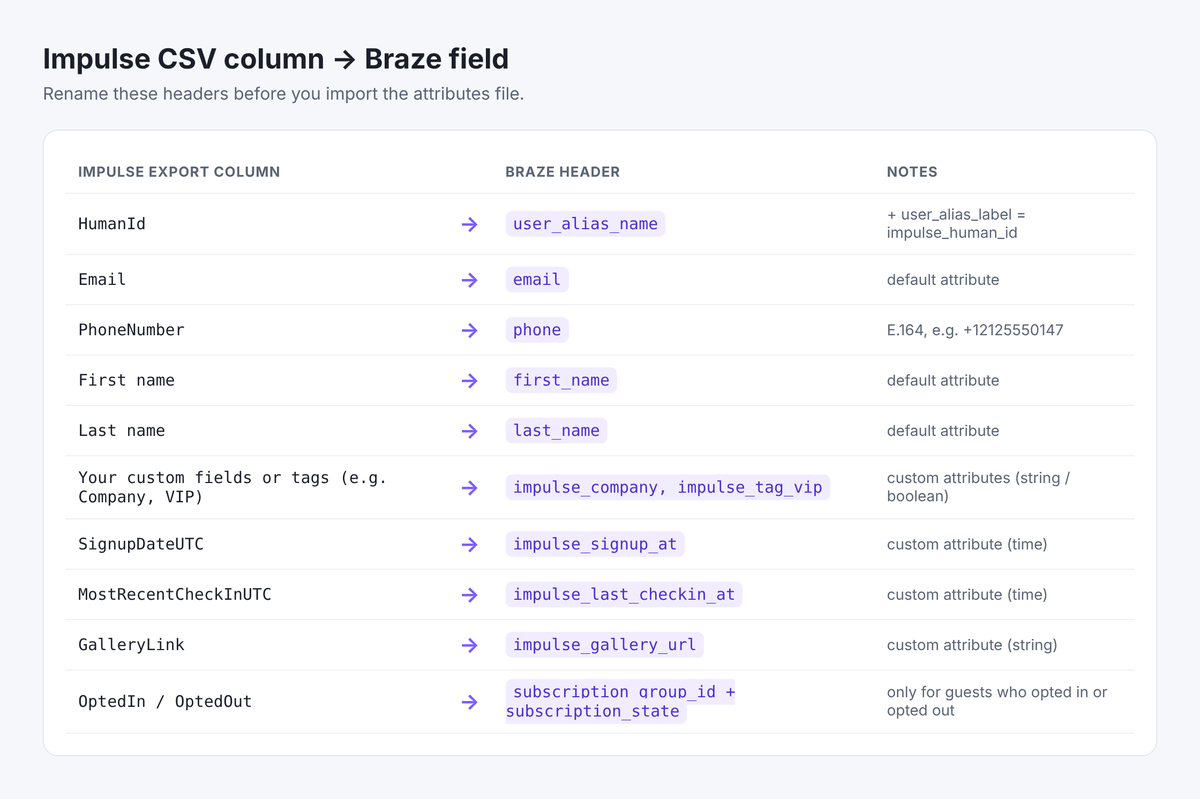
| Impulse column | Braze header | Type |
|---|---|---|
| HumanId | user_alias_name (plus user_alias_label) or impulse_human_id | String |
email | Default attribute | |
| PhoneNumber | phone | Default attribute, E.164 |
| First name | first_name | Default attribute |
| Last name | last_name | Default attribute |
| Any custom fields or tags you collect (e.g. Company, VIP) | impulse_company, impulse_tag_vip, ... | Custom, string or boolean |
| SignupDateUTC | impulse_signup_at | Custom, time |
| MostRecentCheckInUTC | impulse_last_checkin_at | Custom, time |
| GalleryLink | impulse_gallery_url | Custom, string |
Add an impulse_last_event column with your event name so you can tell events apart later. Impulse exports booleans as true/false and timestamps in ISO 8601 (for example 2026-10-13T03:52:30Z), which Braze reads as-is. Blank cells don't overwrite existing values in Braze, so guests who skipped a field keep what you already had. Delete the OptedIn and OptedOut columns from this file once you've used them for the subscription step below.
Add SMS subscription columns only for guests who opted in
To text guests from Braze, they need to be in an SMS subscription group. Add two columns: subscription_group_id (copy the ID from your subscription group page in Braze) and subscription_state. Each row can set one group.
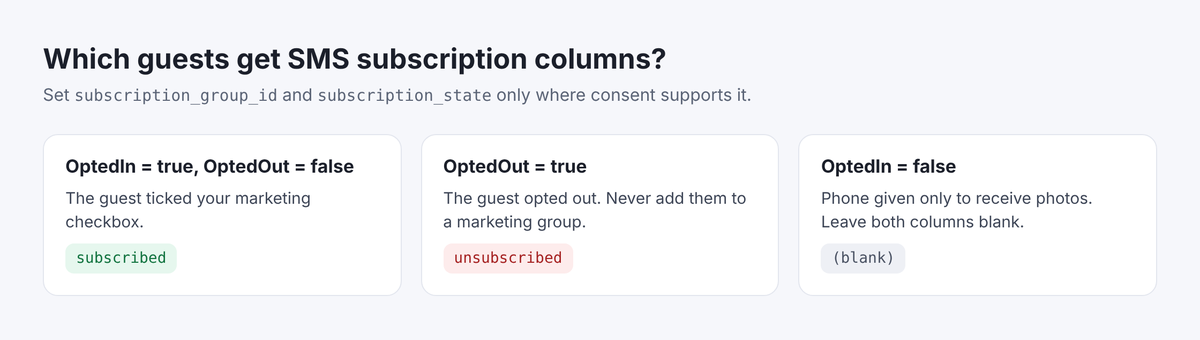
OptedIn is true and OptedOut is false: the guest ticked your marketing checkbox. Set
subscription_statetosubscribed.OptedOut is true: the guest opted out. Set
subscription_statetounsubscribed.OptedIn is false: the guest gave a phone number only to receive photos. Leave both columns blank.
If your signup form also covered marketing email, you can set email_subscribe to opted_in for those guests. Otherwise leave it out.
Create an events file (optional)
Braze imports one data type per file, so signups and check-ins as custom events go in a second CSV. It needs the same identifier columns plus name (the event name) and time (ISO 8601). You can add property columns such as event_code.
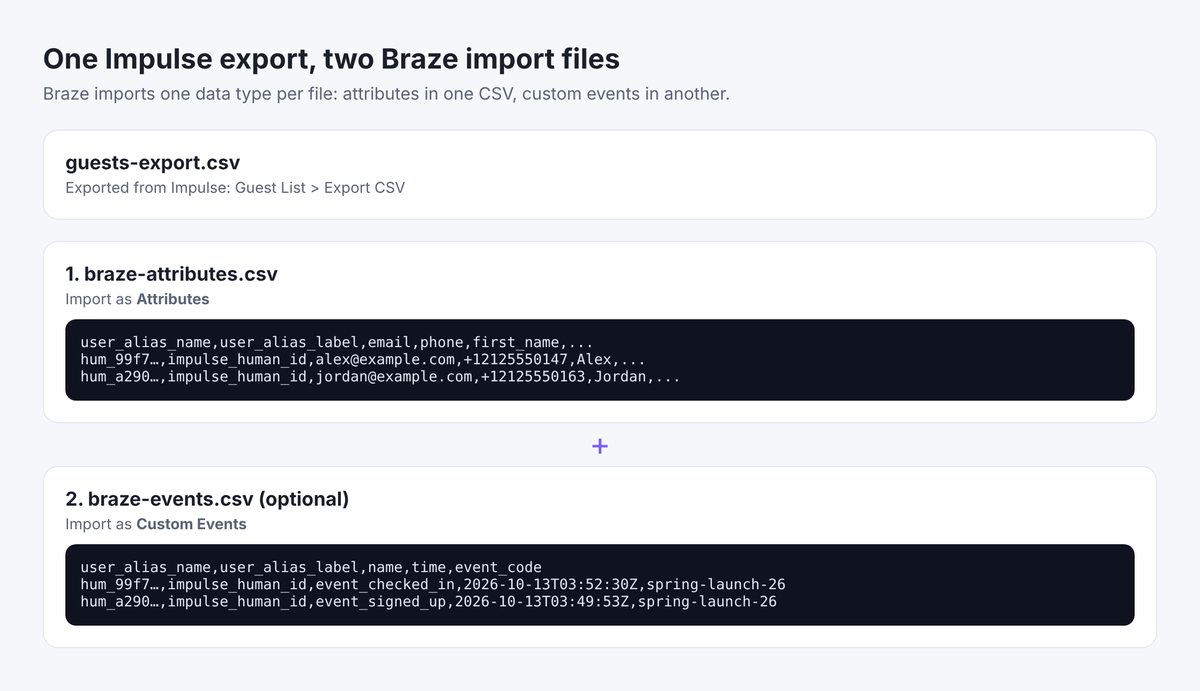
One row per guest with
name=event_signed_upandtime= SignupDateUTCOne row per checked-in guest with
name=event_checked_inandtime= CheckIn1UTC
Events let you trigger a Canvas or filter by "did event_checked_in in the last 7 days". If you only need a list for one follow-up, the attributes file is enough.
Step 3: Import the CSV into Braze
In Braze, go to Audiences > Import Users.
From the Import Users dropdown, select Attributes, click Browse Files and upload your attributes CSV. Braze shows a preview of the first rows.
On the mapping step, check each field. Braze auto-maps matching headers and marks the rest New attribute. Fix any Data type mismatch, for example a time column detected as a string.
Under targeting preferences, select Create targeting filter and add to new segment. You can't add this after the import finishes.
Select Validate file before importing to check every row, then select Start Import.
Repeat with Custom Events for the events file. Braze requires you to map the name and time columns. Attributes files can be up to 500 MB and events files up to 50 MB, far more than any event guest list.
Step 4: Verify and Build Your Segment
When the import shows as complete on the Import Users page:
Search for two or three guests with Audience > Search Users and check their email, phone, custom attributes and subscription group.
Open the new segment and confirm the user count matches the rows in your file.
For SMS, add a filter on your subscription group being subscribed, so only opted-in guests get texts.
From there, send a thank-you message with the impulse_gallery_url link, or start a Canvas that invites guests to your next event.
Stay Compliant When You Text Guests
Only guests who ticked your marketing checkbox (OptedIn) gave marketing consent. Photo delivery is transactional and doesn't cover marketing texts.
Import guests who opted out as
unsubscribed, and never add them to a marketing group.Keep your own consent records (TCPA, 10DLC and local rules) for every number you text.
Frequently Asked Questions
Does Impulse integrate directly with Braze?
Yes. Impulse can sync guests to Braze through the Braze REST API (/users/track) as they sign up and check in. You provide a REST API key with the users.track permission and your REST endpoint, and Impulse handles the field mapping. Contact Impulse or your account team to turn it on. CSV import works with any Braze workspace if you prefer files.
Should I use the API sync or a CSV import?
Use the API sync for recurring events or real-time journeys, such as a thank-you message triggered at check-in. Use a CSV import for a single event, a quick test or to backfill past events.
Do I need an external_id to import users into Braze?
No. You can import with email or phone only, or with a user alias built from the Impulse HumanId.
Why didn't my phone numbers import?
Braze expects E.164 format, such as +12125550147. Remove spaces, dashes and brackets, and add the country code.
Can I put guests in more than one subscription group?
A CSV row sets one group. To add guests to a second group, import another file with the same identifiers and the second subscription_group_id.
Can I do the same with HubSpot, Salesforce or Microsoft Dynamics 365?
Yes. See how to send event leads to HubSpot, Salesforce and Microsoft Dynamics 365.
Capture More Event Leads
Impulse turns guests who want their photos into first-party contacts, with no app required. Create a free account to run your next event, or book a demo to see the Braze sync on a real event.
Take the Next Step with Impulse
Start your journey toward more engagement, greater social reach, and data driven decisions. Use Impulse and unlock your events' full potential.